[Troubleshooting] Installing VMware Tools on Windows XP and Windows 95 with VMware WorkStation 17
Last Update:
Word Count:
Read Time:
Introduction
This article explains how to install VMware Tools on Windows XP and Windows 95 using WMware Workstation 17.
The installation enables features such as drag-and-drop and copy-and-paste between the host and the virtual machine.
Background
Recently, while learning malware analysis, I installed multiple legacy operating systems in VMware Workstation. I then realized that VMware Tools included in Workstation 17 does not support legacy operating systems such as Windows XP by default.
After successfully completing the installation, I found that the official instructions were not very user-friendly. Therefore, I decided to write this article to help anyone facing the same issue.
Getting Started
Windows XP
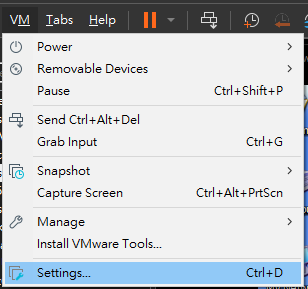
Power on your virtual machine. From the toolbar in VMware Workstation, navigate to:
VM -> Install VMware Tools
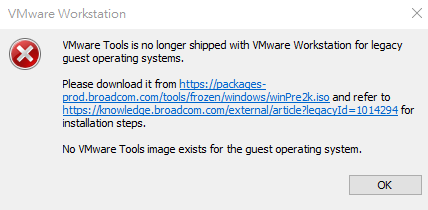
You should see the following error message:
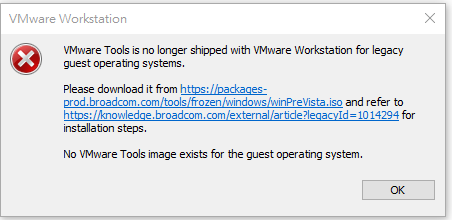
The first URL (an ISO file) provides VMware Tools for legacy Windows operating systems, while the second URL contains instructions—which may not be very user-friendly.
Click the first URL to download the ISO file, and move it to an appropriate directory.

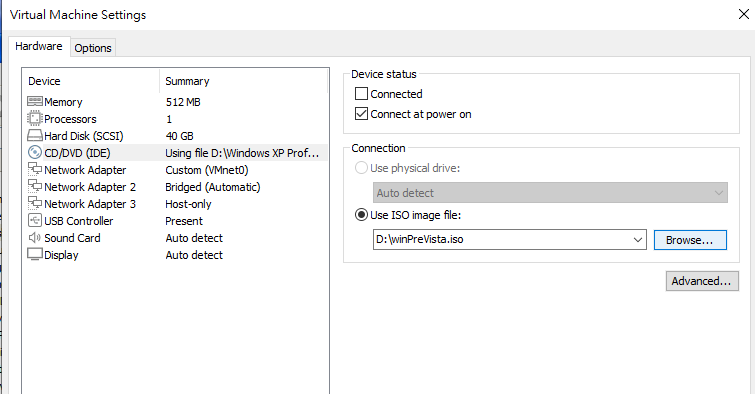
Note that no need to power off your virtual machine. Open the virtual machine settings:
Select “CD/DVD” and modify the ISO image file path to the ISO file you downloaded eariler:
Start your virtual machine and open “My Computer”:
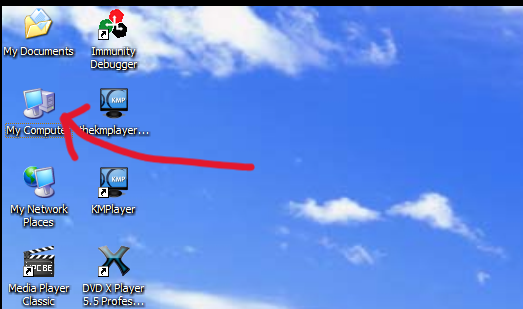
If the ISO file is mounted successfully, you shoud see VMware Tools listed as a removable drive:
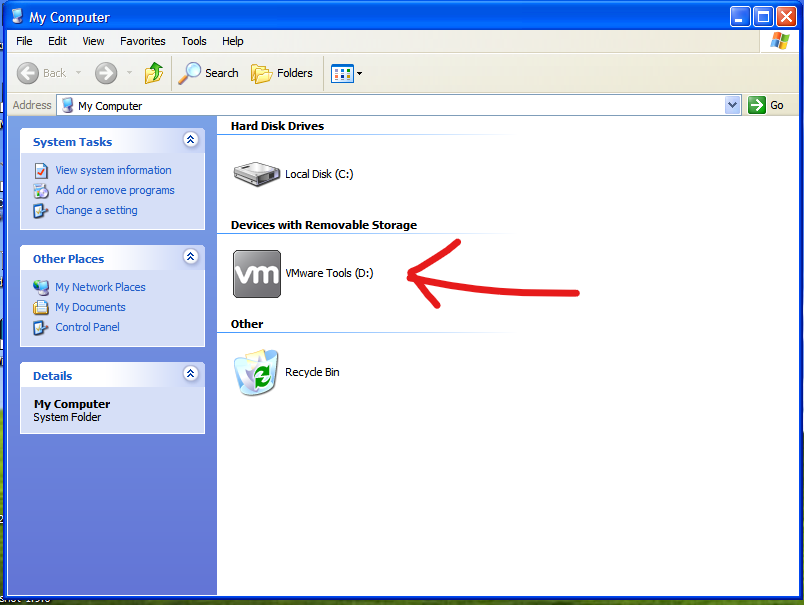
Double-click “VMWare Tools” to launch the installer:
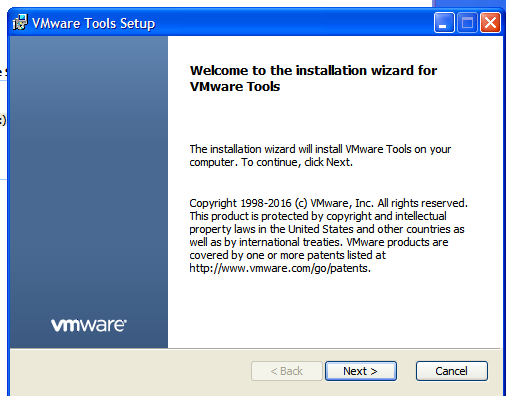
Follow the installation wizard to complete the setup:
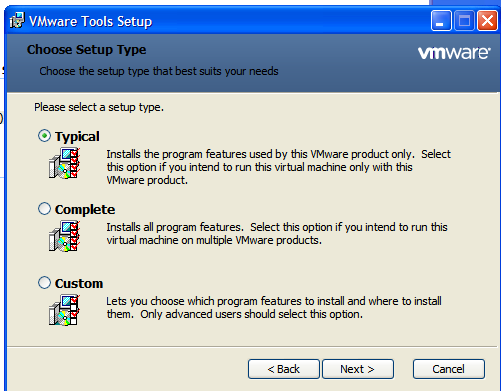
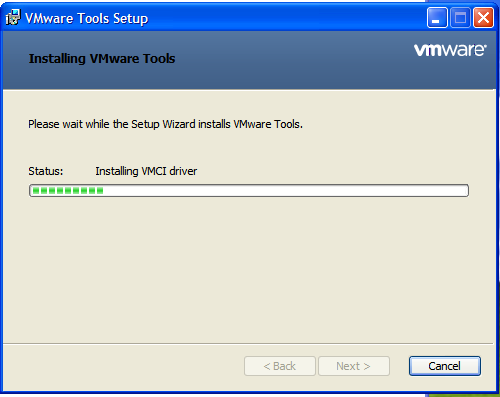
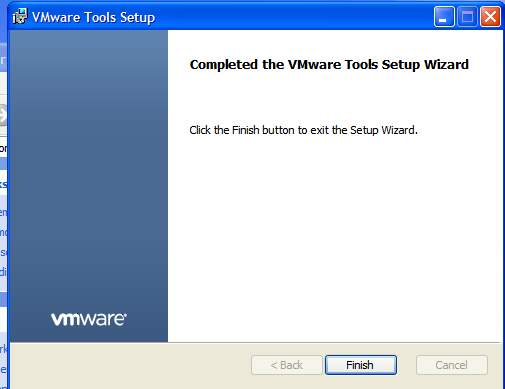
After installation, restart your virtual machine:
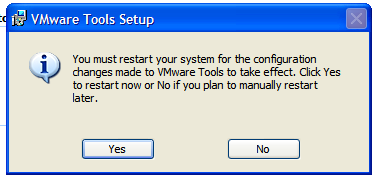
If the VMWare Tools has been installed successfully, you will be able to use features such as drag-and-drop and copy-and-paste between the host and the guest system.
Windows 95
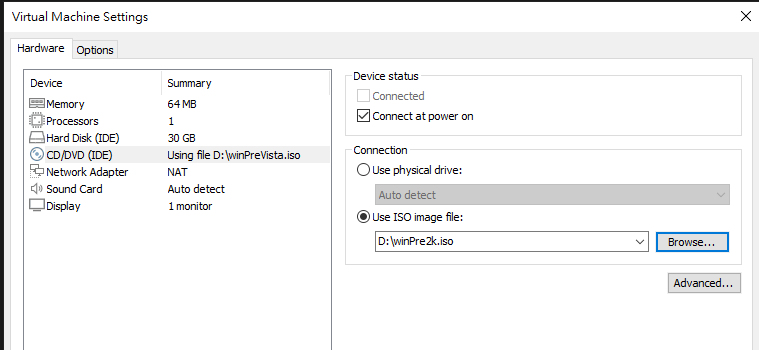
Installing VMWare Tools on Windows 95 is almost following the same procedure, but the ISO file is different.
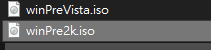
Select “CD/DVD” and modify the ISO image file path to the ISO file you downloaded eariler:
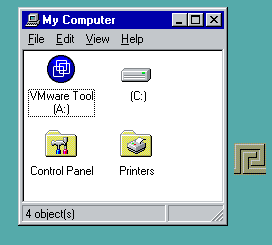
Start your virtual machine and open “My Computer”, If the ISO file is mounted successfully, you shoud see VMware Tools listed as a removable drive:
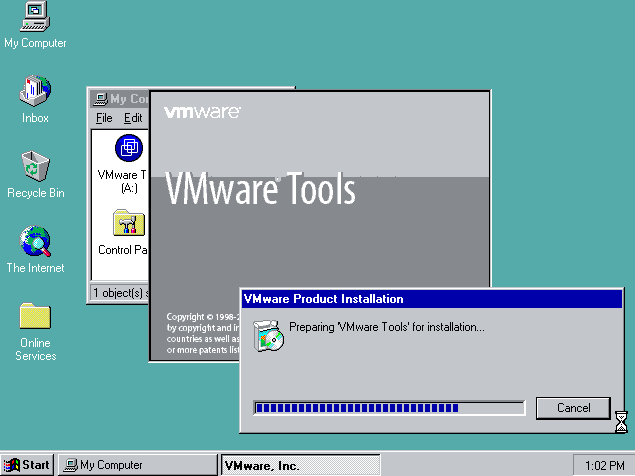
Follow the installation wizard to complete the setup:
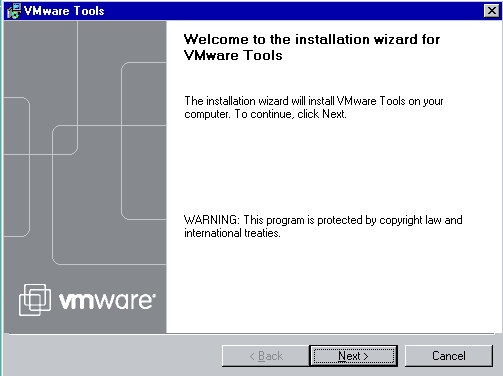
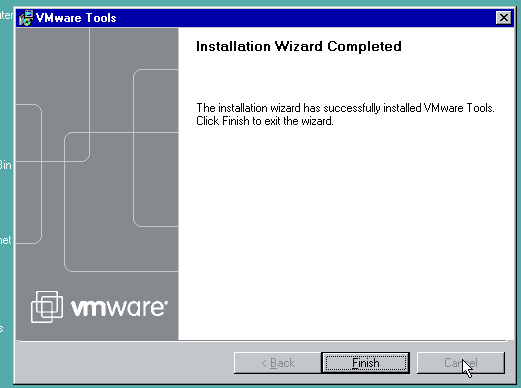
After installation, restart your virtual machine.
If the VMWare Tools has been installed successfully, you will be able to use features such as drag-and-drop and copy-and-paste between the host and the guest system:
THANKS FOR READING